
How to Translate a Manga PDF and Download the Pages
Import a manga PDF, check its page count and credit cost, and download the translated pages as ZIP or CBZ.

Open the manga translation workspace and sign in to translate a PDF. The browser renders each PDF page as an image. Once the chapter is queued, you can leave the page and later download the translated images as a ZIP or CBZ.
Check the PDF before uploading
Each PDF can contain up to 50 pages and be up to 100 MB. You can select up to five documents with 100 pages across the batch. Split a larger volume into chapters before importing it. If the PDF requires a password, open it locally and save an unlocked copy if you have permission.
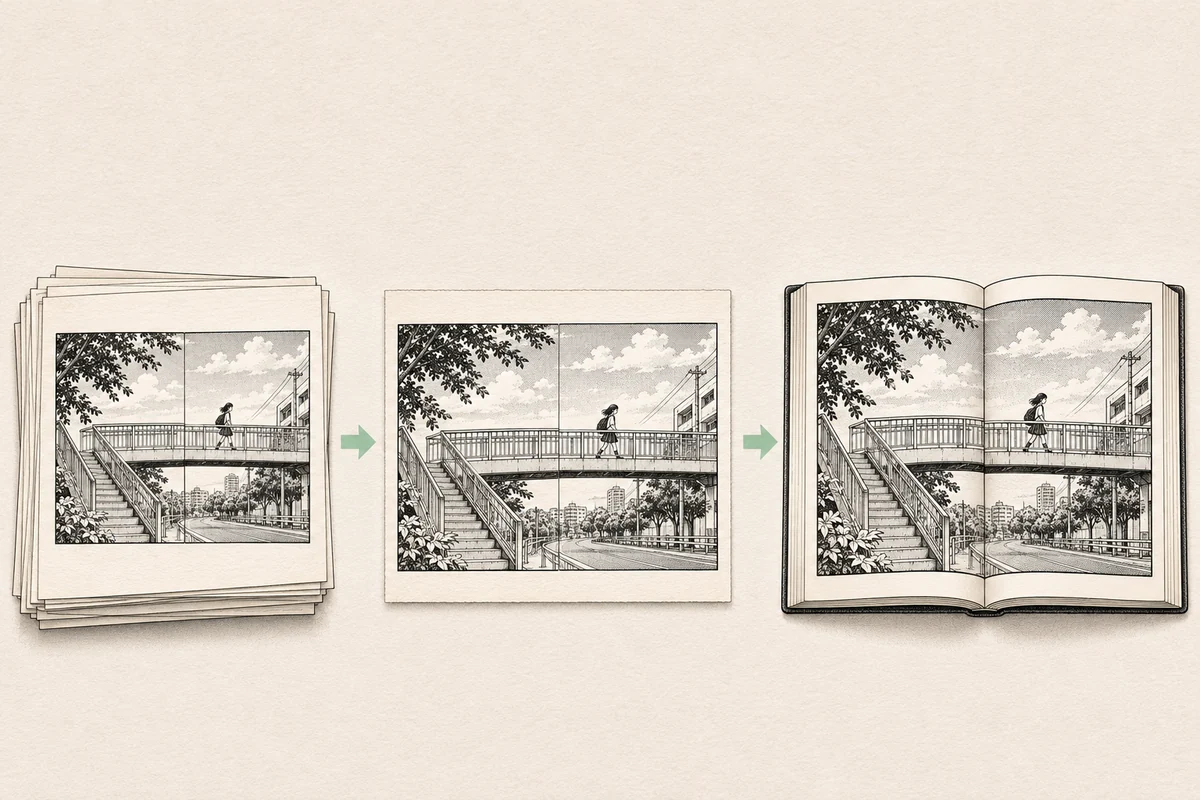
A two-page spread stored as one PDF page is rendered as one image. Use the page count in the upload form to confirm the number of pages before starting.
Translate the chapter
- Choose your PDF in the manga translation workspace. It will show the number of pages and the estimated credit cost at one credit per page.
- Choose the source and target languages. English, Japanese, Korean, and Simplified Chinese are available, and the source can be detected automatically.
- Confirm the translation and keep the page open until the page images finish uploading and the chapter joins the queue. Each document has its own queue entry.
- Return to Translation history and open the chapter. Compare the result with the original. Retry an eligible page there if it needs another attempt, then download the completed pages as ZIP or CBZ.
If you need a PDF after translation
The download contains page images, so use a separate PDF tool to combine them if your reader needs a PDF. Check the order and orientation of the pages when assembling your new PDF. Keep a copy of the source document if you need its bookmarks or other PDF metadata.