
The Complete Manga Translator Extension Guide: Read Raw Manga in Any Browser
Learn how to use the AI Manga Translator Chrome extension to translate raw manga directly inside MangaDex, Pixiv, and web readers with zero file downloads.

Nothing interrupts the thrill of discovering an exciting new manga chapter quite like running into an untranslated Japanese or Korean raw scan.
In the past, understanding untranslated webcomics meant saving dozens of images to your desktop, dragging them into a machine translation website, and switching back and forth between browser tabs.
With the AI Manga Translator Browser Extension, you can eliminate that friction entirely. By hooking directly into web readers, the extension identifies Japanese, Korean, and Chinese dialogue bubbles and replaces them in real time with high-definition translated text—right inside the original webpage.
Here is the complete guide to installing, configuring, and mastering in-browser manga translation.
Why Use an In-Browser Manga Extension?
- Traditional manual method. Open the web reader, right-click to save 30 images, upload them to a web tool, then read in an external viewer.
- Browser extension method. Open a manga site, press Alt + T, then read the translation on the page.
| Feature | Desktop Web Uploads | Chrome Extension |
|---|---|---|
| Setup Effort | Download, organize files, re-upload | 1-Click toggle directly on the active tab |
| Reading Immersion | Separate window or viewer app | Stays on your favorite reader (MangaDex, etc.) |
| Keyboard Navigation | Manual clicking | Preserves reader hotkeys (Arrow keys, F for fullscreen) |
| Pre-Loading | Must wait for full batch upload | Smart background pre-translation of next 2 pages |
| Hover Tooltips | Not available | Hover mouse over any bubble for instant peek |
3 Flexible Reading Modes
The extension accommodates both casual readers who want instant translations and language learners practicing Japanese or Korean:
1. In-Place Inpainting Mode (Default)
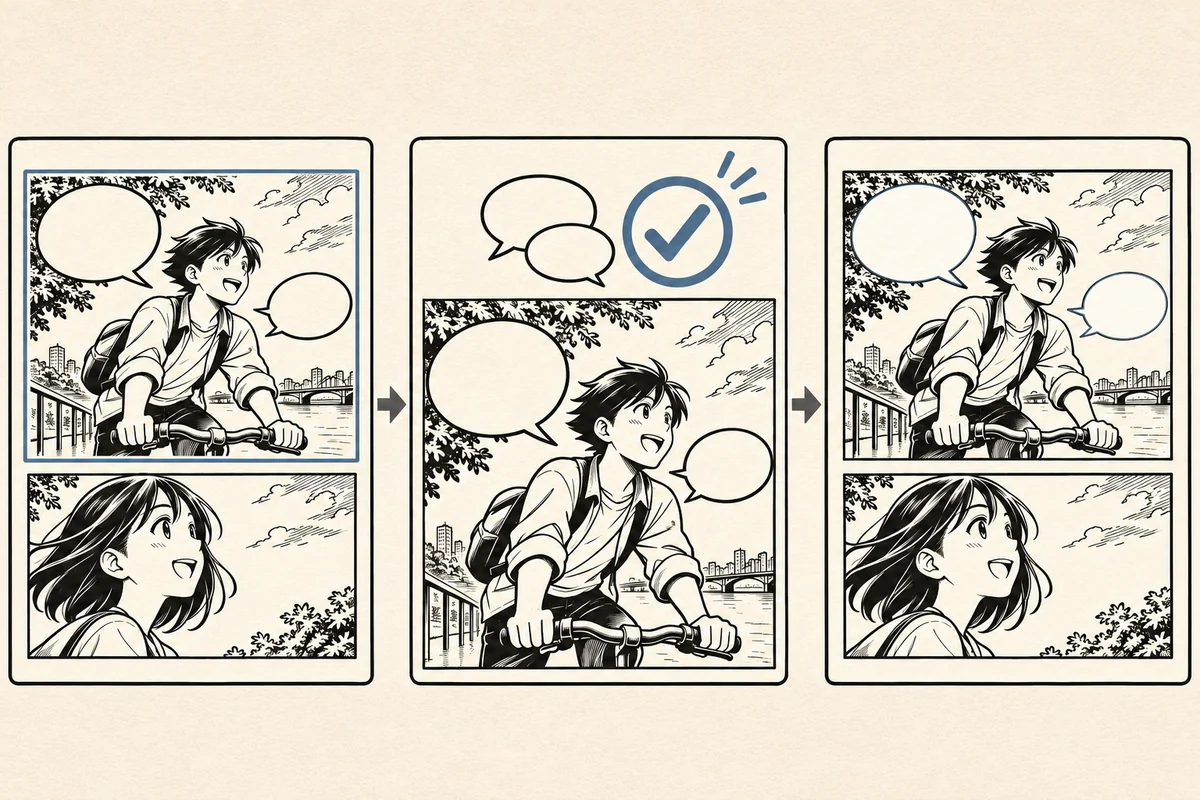
The neural engine erases the original Japanese or Korean characters and reconstructs the underlying background texture (such as screentones, halftones, or color gradients). Clean, centered comic typography is rendered directly inside the bubble.
2. Instant Hover & Tooltip Mode
Ideal for Japanese/Korean students. The page artwork remains 100% original. When your cursor hovers over a speech bubble, an elegant tooltip appears displaying:
- The transcribed original kanji/hangul text.
- Pronunciation guide (furigana/romaji).
- Contextual English translation.
3. Side-by-Side Dual-Layer View
Split the viewport or click and hold the spacebar to temporarily reveal the raw original page underneath. It gives you the best of both worlds without missing a single subtle artistic detail.
Supported Platforms & Compatibility
The AI Manga Translator extension is built on universal HTML5 Canvas and image-detection heuristics, ensuring broad compatibility across:
- MangaDex (
mangadex.org): Complete integration with standard, double-page, and long-strip modes. - Pixiv Comic & Nico Nico Seiga: Direct translation of indie doujinshi and webcomic shorts.
- ComicWalker & Comic Days: Seamless reading on official Japanese publisher web portals.
- Naver Webtoon & KakaoPage: Smooth vertical scrolling support for Korean webtoons.
- Raw Aggregators & Social Feeds: Works on Twitter/X manga panels, Reddit comic threads, and raw scan aggregators.
Step-by-Step Installation & Setup
Step 1: Install from the Chrome Web Store
- Open the AI Manga Translator extension page and click Install from Chrome Web Store to open the official listing.
- In the store, click Add to Chrome. Review the requested permissions, then click Add extension to confirm.
- Pin the extension icon to your browser toolbar for easy access.
Step 2: Sign In to Sync Credits
Click the extension puzzle icon and log in. Your subscription plan, free daily credits, and custom glossary preferences sync seamlessly between the web app and extension.
Step 3: Configure Your Preferences
In the extension settings popup:
- Source Language: Auto-Detect (or pin to Japanese, Korean, or Chinese).
- Target Language: English (or your preferred language).
- Auto-Translate Next Page: Check this to enable zero-lag background pre-translation.
Step 4: Start Reading!
Navigate to any manga webpage and press Alt + T (or Option + T on macOS). The extension scans the active viewport and translates every speech bubble in seconds.
Keyboard Shortcuts Cheatsheet
| Shortcut | Function |
|---|---|
Alt + T / Option + T | Toggle on-page translation overlay |
Space (Hold) | Peek at raw original Japanese/Korean art |
Alt + H | Toggle Hover Tooltip Mode |
Left / Right Arrow | MangaDex native page turn (auto-translates new page) |
Privacy & Security
We believe reading habits should remain private. The extension operates in strict compliance with Chrome Web Store security guidelines:
- No Browsing History Collected: The extension only inspects images on tabs where you explicitly activate it.
- In-Memory Ephemeral Caching: Processed image slices are held in temporary memory during your reading session and discarded when you close the tab.
References & Authoritative Sources
- Chrome for Developers — Chrome Extensions Manifest V3 Architectural Blueprint and Privacy Sandbox
- W3C HTML5 Canvas Working Group — HTML Canvas 2D Context Specification
- MangaDex Developer Portal — MangaDex API v5 Architecture & Reader Specifications